> ## Documentation Index
> Fetch the complete documentation index at: https://docs.usehindsight.com/llms.txt
> Use this file to discover all available pages before exploring further.
# Hindsight MCP
> Connect AI assistants to your Hindsight deal data via the Model Context Protocol
## Model Context Protocol (MCP) Integration
Hindsight exposes its AI agent capabilities through the Model Context Protocol (MCP), allowing AI assistants to directly query your deal data, research competitors, and analyze pipeline metrics.
**Compatible with:** Claude.ai, Claude Desktop, Claude Code, ChatGPT, Cursor, Cline, and any MCP-compatible client.
***
## Setup
### Connect via Claude.ai
The easiest way to connect Hindsight is directly through the Claude.ai web app with no API keys or config files required.
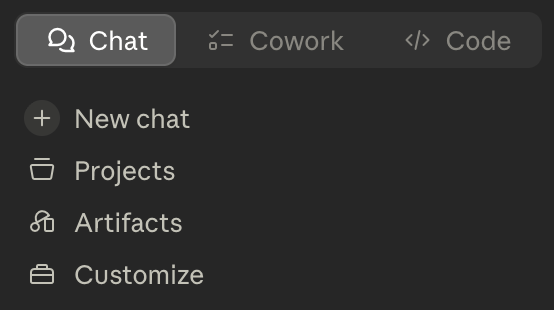
**1. Open the sidebar customization panel**
Click the customize button in the Claude sidebar on the left.
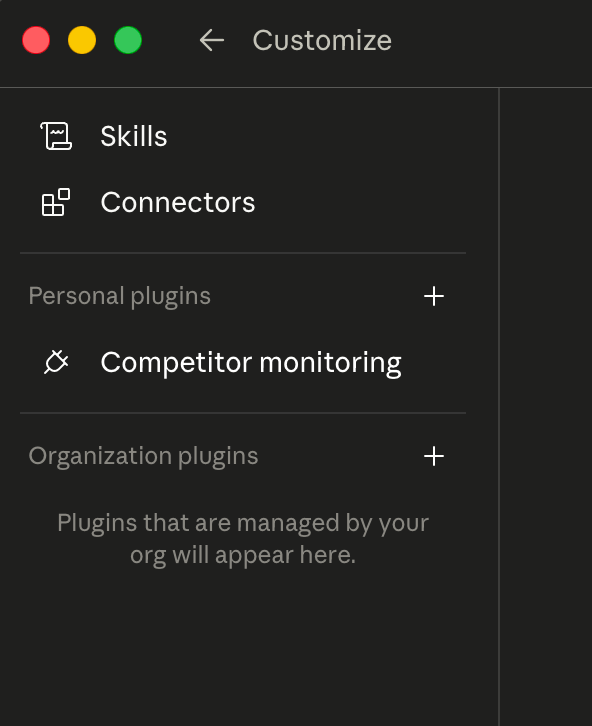
 **2. Open Connectors**
Click the **Connectors** button in the panel that appears.
**2. Open Connectors**
Click the **Connectors** button in the panel that appears.
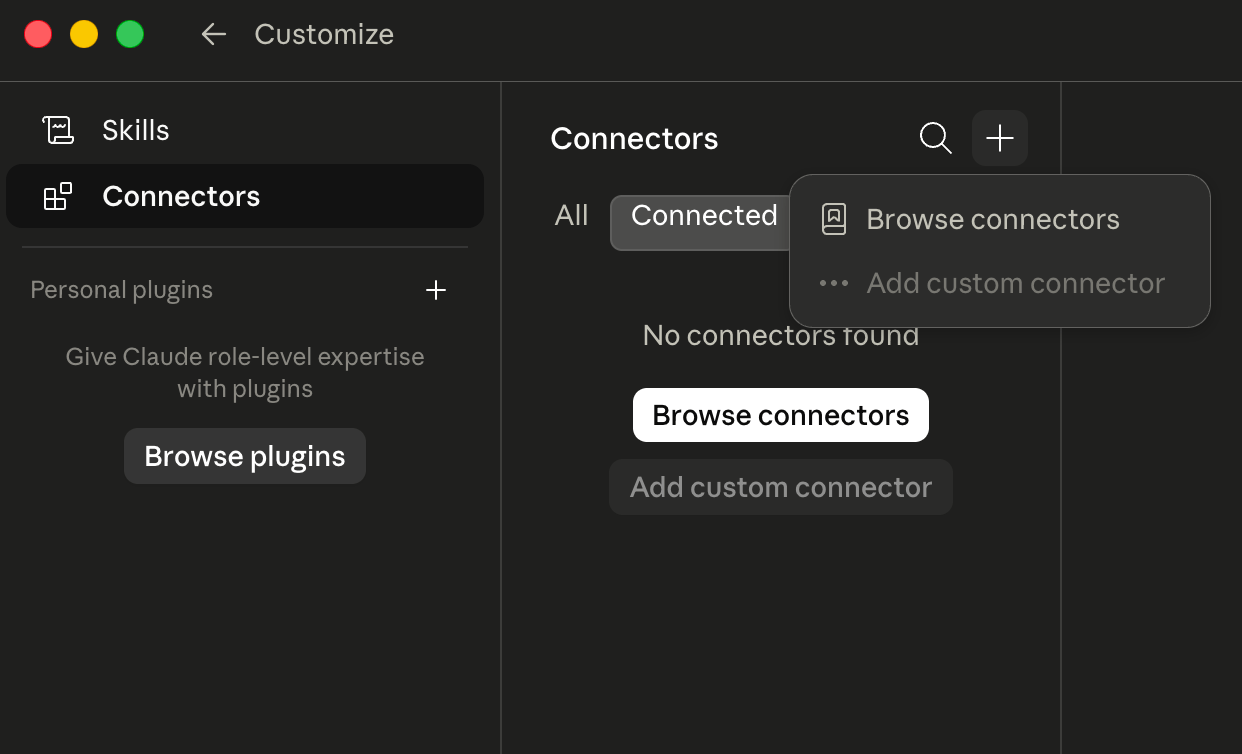
 **3. Add a new connector**
Click the **+** button to add a custom connector.
**3. Add a new connector**
Click the **+** button to add a custom connector.
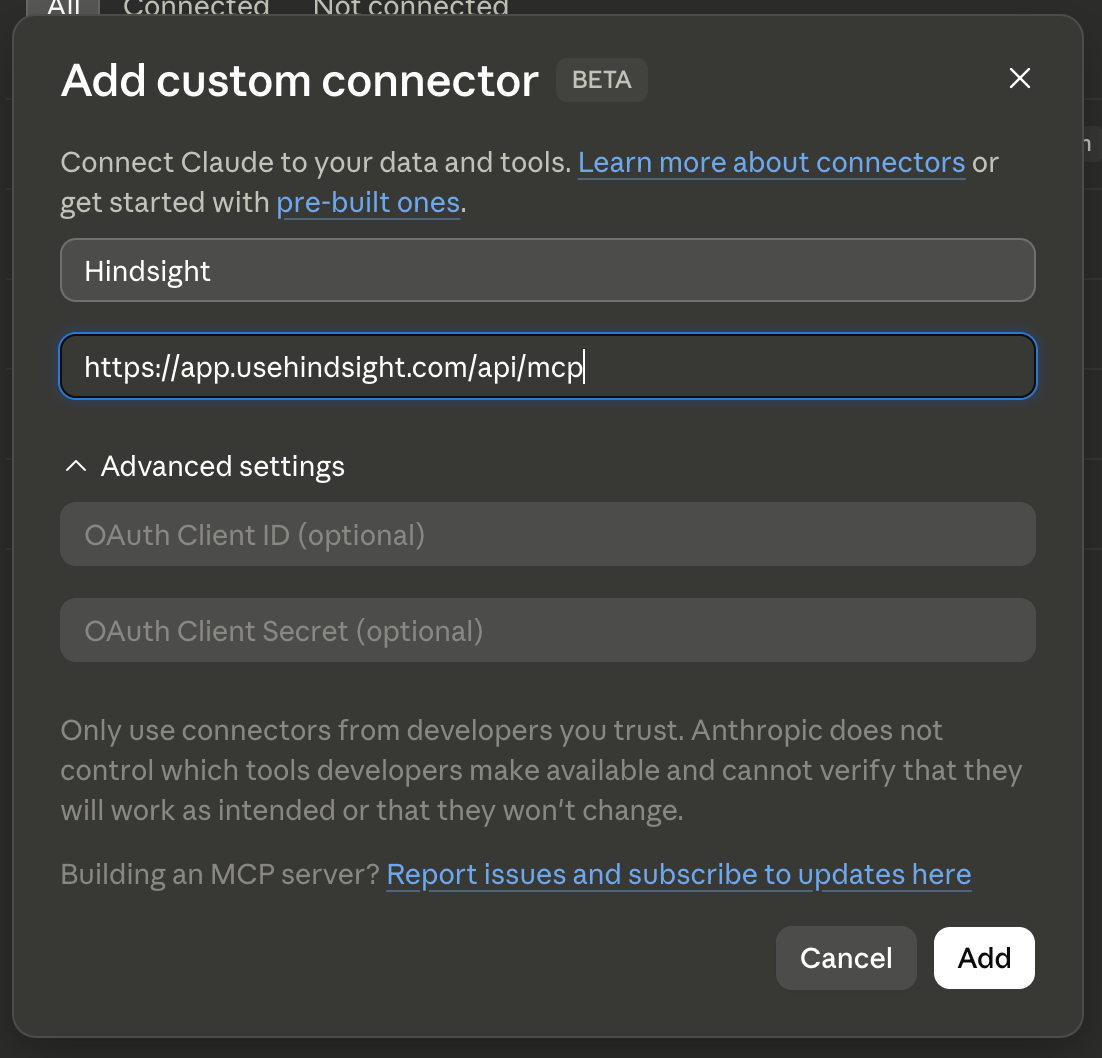
 **4. Fill in the Hindsight connector details**
Set the name to `Hindsight` and the URL to `https://app.usehindsight.com/api/mcp`, then click **Add**.
**4. Fill in the Hindsight connector details**
Set the name to `Hindsight` and the URL to `https://app.usehindsight.com/api/mcp`, then click **Add**.
 **5. Connect**
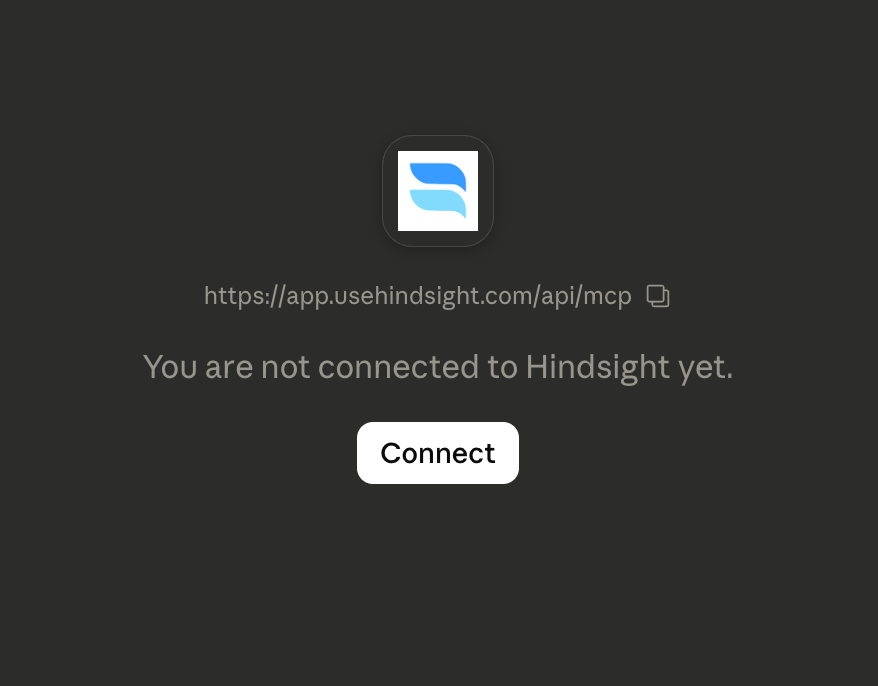
Click **Connect** on the Hindsight connector. If your account belongs to multiple Hindsight organizations, you'll be prompted to select which org to associate with this connection.
**5. Connect**
Click **Connect** on the Hindsight connector. If your account belongs to multiple Hindsight organizations, you'll be prompted to select which org to associate with this connection.
 That's it — Hindsight is now available in your Claude.ai conversations.
### One-Click Install
Download and double-click the Hindsight MCP bundle to install directly into Claude Desktop. No config file editing required.
[Download hindsight.mcpb](https://app.usehindsight.com/hindsight.mcpb)
When you open the file and click install, Claude Desktop will open the browser prompting you to login to Hindsight and select an organization to use for the MCP.
***
### Manual Setup
If you prefer to configure manually, open your Claude Desktop config file:
* **macOS**: `~/Library/Application Support/Claude/claude_desktop_config.json`
* **Windows**: `%APPDATA%\Claude\claude_desktop_config.json`
```json theme={null}
{
"mcpServers": {
"hindsight": {
"command": "npx",
"args": ["-y", "mcp-remote", "https://app.usehindsight.com/api/mcp", "--header", "Authorization: Bearer YOUR_API_KEY"]
}
}
}
```
Restart Claude Desktop after saving. For more details, see [Anthropic's MCP setup guide](https://support.claude.com/en/articles/10949351-getting-started-with-local-mcp-servers-on-claude-desktop).
Generate an API key from **Settings → API Keys** in the Hindsight app.
### Claude Code
Run this command in your terminal:
```bash theme={null}
claude mcp add hindsight --transport http https://app.usehindsight.com/api/mcp \
--header "Authorization: Bearer YOUR_API_KEY"
```
Generate an API key from **Settings → API Keys** in the Hindsight app.
### ChatGPT Developer Mode
ChatGPT's MCP support is available in beta via **Developer Mode** on Pro, Plus, Business, Enterprise, and Education accounts.
**1. Enable Developer Mode**
Go to **Settings → Apps → Advanced settings → Developer mode** and toggle it on.
**2. Create a Hindsight app**
1. Open **ChatGPT Apps settings**
2. Click **Create app** (only visible when Developer Mode is enabled)
3. Enter `https://app.usehindsight.com/api/mcp` as the MCP server URL
4. Set authentication to "OAuth"
5. After hitting "Create" you should be directed to a new page to login with your Hindsight account to authenticate
The app will appear under **Drafts** in your app settings.
**3. Use Hindsight in a conversation**
Select **Developer Mode** from the composer's Plus menu, choose the Hindsight app, and start your conversation. For best results, be explicit about which tool to use:
> "Use the Hindsight app's `search_across_deals` tool to find why we lost deals to Salesforce last quarter."
For more details, see [OpenAI's Developer Mode documentation](https://developers.openai.com/api/docs/guides/developer-mode).
### HTTP / JSON-RPC
The Hindsight MCP server is a standard HTTP endpoint. Any HTTP client can call it directly using JSON-RPC 2.0.
**Endpoint:** `https://app.usehindsight.com/api/mcp`
**Required headers:**
```
Authorization: Bearer YOUR_API_KEY
Content-Type: application/json
Accept: application/json, text/event-stream
```
**List available tools:**
```bash theme={null}
curl -X POST https://app.usehindsight.com/api/mcp \
-H "Authorization: Bearer YOUR_API_KEY" \
-H "Content-Type: application/json" \
-H "Accept: application/json, text/event-stream" \
-d '{"jsonrpc":"2.0","id":1,"method":"tools/list","params":{}}'
```
**Call a tool:**
```bash theme={null}
curl -X POST https://app.usehindsight.com/api/mcp \
-H "Authorization: Bearer YOUR_API_KEY" \
-H "Content-Type: application/json" \
-H "Accept: application/json, text/event-stream" \
-d '{
"jsonrpc": "2.0",
"id": 2,
"method": "tools/call",
"params": {
"name": "fetch_hindsight_context",
"arguments": {}
}
}'
```
Each tool's exact arguments are returned by `tools/list` above. `fetch_hindsight_context` takes no arguments and is the usual starting point — it returns the competitors and deal stages the other tools reference. This approach works with any language or framework — no MCP client library required.
***
## Reconnecting after an update
Hindsight MCP moved to OAuth sign-in in [MCP 2.0](/release-notes/mcp-2.0). If you connected against the older preview server, the old connection won't authenticate anymore — you need to reconnect once against the current server. A stale connection typically shows up as a login loop, a `401`/`invalid_token` error, or tools that silently return nothing.
Claude has no in-place "reauthenticate" button for a custom connector. To re-sign-in you **remove the old connector and add it again** — editing an existing connector isn't supported. Reconnecting is safe: it doesn't touch your Hindsight data, only the local credential.
**1. Remove the old connector**
Go to **Customize → Connectors**, find the old **Hindsight** entry, open the **⋯** menu, and click **Remove**.
**2. Add it again**
Click **+ → Add custom connector**, set the URL to `https://app.usehindsight.com/api/mcp`, and click **Add**. (Desktop users can instead reinstall the [hindsight.mcpb](https://app.usehindsight.com/hindsight.mcpb) bundle.)
**3. Connect and sign in**
Click **Connect**. Claude opens your browser to sign in to Hindsight; if you belong to multiple orgs, pick the workspace for this connection.
**4. Re-check tool permissions**
With 2.0's direct tool calls, you control which tools are exposed. After reconnecting, confirm the Hindsight tools you want are enabled in the connector's settings.
Manual setups that use `npx mcp-remote` cache their OAuth tokens on disk, so a fresh sign-in won't happen until you clear that cache. Removing and re-adding the connector in Claude is **not** enough here — clear the cache, then let the flow re-run.
Quit Claude Desktop / your client first, then delete the cache directory:
```bash macOS / Linux theme={null}
rm -rf ~/.mcp-auth
```
```powershell Windows (PowerShell) theme={null}
Remove-Item -Recurse -Force "$env:USERPROFILE\.mcp-auth"
```
Reopen your client — the next call runs the full OAuth flow and stores fresh tokens.
If your manual config uses an **API key** (`Authorization: Bearer YOUR_API_KEY`) rather than OAuth, there's nothing to reauthenticate — just confirm the key is still valid under **Settings → API Keys** in Hindsight and that your config points at `https://app.usehindsight.com/api/mcp`.
***
## Team & Enterprise workspaces
On Claude **Team** and **Enterprise** plans, individual members usually **cannot** add a custom connector themselves — an **Owner** (or Primary Owner) has to approve it for the organization first. If you don't see an **Add custom connector** option, this is why.
In Claude, go to **Organization settings → Connectors → Add**, hover **Custom**, and choose **Web**. Enter the URL `https://app.usehindsight.com/api/mcp` and click **Add**. (Leave **Advanced settings** / OAuth Client ID & Secret blank — Hindsight's OAuth is handled per user at connect time.)
Once the Owner has added it, each member goes to **Customize → Connectors**, finds the **Hindsight** entry (marked with a **Custom** label), and clicks **Connect** to run their own OAuth sign-in and pick their workspace.
Access stays **per user**, not shared. Each member signs in as themselves and only sees the Hindsight org they select — the Owner enabling the connector doesn't grant anyone access to Hindsight data. See the [MCP 2.0 notes](/release-notes/mcp-2.0#oauth-is-now-the-primary-sign-in).
If your organization is on a plan where a member added a preview-era connector before Owner approval was required, that member should **remove** it (**Customize → Connectors → ⋯ → Remove**) and reconnect to the Owner-approved one so everyone is on the same server.
For the authoritative admin steps, see Anthropic's guides on [getting started with custom connectors](https://support.claude.com/en/articles/11175166-get-started-with-custom-connectors-using-remote-mcp) and [using connectors](https://support.claude.com/en/articles/11176164-use-connectors-to-extend-claude-s-capabilities).
***
## Available Tools
The server exposes the verified deal layer as a focused set of tools, grouped below. Most workflows open with **`fetch_hindsight_context`** to learn the workspace's competitors and deal stages, then branch into the relevant group. For the exact current surface — including parameters — call `tools/list` against the endpoint (see the [Direct API](#direct-api) tab above).
### Context & schema
| Tool | Description |
| ------------------------- | --------------------------------------------------------------------------------------------------------------------- |
| `fetch_hindsight_context` | Fetch competitors and deal stages needed to use the other tools. Usually the first call. |
| `pull_schema` | Fetch the CRM field schema for your workspace — field names and types for the deal grid. Use before `create_dataset`. |
### Deals & pipeline
| Tool | Description |
| ----------------------- | ------------------------------------------------------------------------------------------------------------------------------------------------------------------------------------------------------------------------------------- |
| `select_deal` | Filter and list deals by criteria (competitor, stage, amount, date, owner, and more). Pass a conceptual `semantic_query` to rank matches by similarity to a description instead of paging by date. Returns lean rows for fast triage. |
| `get_deal` | Get full details for specific deals by ID. |
| `search_across_deals` | Search all deal documents across the entire pipeline. |
| `search_deal_documents` | Deep search within specific deals. |
| `pull_full_document` | Fetch full document content by ID when retrieved chunks aren't enough. |
### Competitive intelligence
| Tool | Description |
| --------------------------- | ------------------------------------------ |
| `search_competitive_assets` | Search battlecards and competitive assets. |
| `search_competitive_intel` | Search pre-saved competitive intelligence. |
### Knowledge base
| Tool | Description |
| ----------------------- | ----------------------------------------------------------------- |
| `search_knowledge_base` | Search your company's messaging docs, playbooks, and positioning. |
### Live web research
| Tool | Description |
| --------------- | ---------------------------------------------------- |
| `search_web` | Live web search for competitive and market research. |
| `scrape_url` | Extract content from a specific URL. |
| `map_site_urls` | Discover and map the structure of a website. |
### Quantitative analysis
For win-rate, trend, and segment questions over the deal grid.
| Tool | Description |
| ------------------------- | ---------------------------------------------------------- |
| `create_dataset` | Build a structured dataset from your deal pipeline. |
| `analyze_dealgrid_subset` | Filter and analyze a quantitative subset of the deal grid. |
**Typical flow:** `pull_schema` → `create_dataset` → `analyze_dealgrid_subset`.
### Write back
| Tool | Description |
| -------------------------- | ---------------------------------------------------------------------------------------------------------- |
| `upload_deal_document` | Attach a document to a deal — pass the text directly or a downloadable file URL (PDF, DOCX, audio, video). |
| `upload_to_knowledge_base` | Upload your own company's docs, playbooks, case studies, or approved messaging to the knowledge base. |
| `upload_competitive_intel` | Save competitor pricing, positioning, feature notes, or gathered news to the knowledge base. |
***
## How It Works
The tools read from Hindsight's verified deal layer — one cross-referenced record per deal, built server-side by the Analyze Engine. Search and research tools return cited results grounded in your source documents and knowledge base; quantitative tools run structured queries against your exported deal grid and compute the metrics you ask for.
Because retrieval and verification happen up front, your agent orchestrates clean, cited tools rather than re-deriving context from raw transcripts on every call. See the [Platform Overview](/overview) for how the verified layer is built.
***
## Authentication
MCP requests authenticate using your Hindsight API key as a Bearer token. Keys are scoped to your organization — all tools operate on your org's data only.
Generate an API key from **Settings → API Keys** in the Hindsight app.
That's it — Hindsight is now available in your Claude.ai conversations.
### One-Click Install
Download and double-click the Hindsight MCP bundle to install directly into Claude Desktop. No config file editing required.
[Download hindsight.mcpb](https://app.usehindsight.com/hindsight.mcpb)
When you open the file and click install, Claude Desktop will open the browser prompting you to login to Hindsight and select an organization to use for the MCP.
***
### Manual Setup
If you prefer to configure manually, open your Claude Desktop config file:
* **macOS**: `~/Library/Application Support/Claude/claude_desktop_config.json`
* **Windows**: `%APPDATA%\Claude\claude_desktop_config.json`
```json theme={null}
{
"mcpServers": {
"hindsight": {
"command": "npx",
"args": ["-y", "mcp-remote", "https://app.usehindsight.com/api/mcp", "--header", "Authorization: Bearer YOUR_API_KEY"]
}
}
}
```
Restart Claude Desktop after saving. For more details, see [Anthropic's MCP setup guide](https://support.claude.com/en/articles/10949351-getting-started-with-local-mcp-servers-on-claude-desktop).
Generate an API key from **Settings → API Keys** in the Hindsight app.
### Claude Code
Run this command in your terminal:
```bash theme={null}
claude mcp add hindsight --transport http https://app.usehindsight.com/api/mcp \
--header "Authorization: Bearer YOUR_API_KEY"
```
Generate an API key from **Settings → API Keys** in the Hindsight app.
### ChatGPT Developer Mode
ChatGPT's MCP support is available in beta via **Developer Mode** on Pro, Plus, Business, Enterprise, and Education accounts.
**1. Enable Developer Mode**
Go to **Settings → Apps → Advanced settings → Developer mode** and toggle it on.
**2. Create a Hindsight app**
1. Open **ChatGPT Apps settings**
2. Click **Create app** (only visible when Developer Mode is enabled)
3. Enter `https://app.usehindsight.com/api/mcp` as the MCP server URL
4. Set authentication to "OAuth"
5. After hitting "Create" you should be directed to a new page to login with your Hindsight account to authenticate
The app will appear under **Drafts** in your app settings.
**3. Use Hindsight in a conversation**
Select **Developer Mode** from the composer's Plus menu, choose the Hindsight app, and start your conversation. For best results, be explicit about which tool to use:
> "Use the Hindsight app's `search_across_deals` tool to find why we lost deals to Salesforce last quarter."
For more details, see [OpenAI's Developer Mode documentation](https://developers.openai.com/api/docs/guides/developer-mode).
### HTTP / JSON-RPC
The Hindsight MCP server is a standard HTTP endpoint. Any HTTP client can call it directly using JSON-RPC 2.0.
**Endpoint:** `https://app.usehindsight.com/api/mcp`
**Required headers:**
```
Authorization: Bearer YOUR_API_KEY
Content-Type: application/json
Accept: application/json, text/event-stream
```
**List available tools:**
```bash theme={null}
curl -X POST https://app.usehindsight.com/api/mcp \
-H "Authorization: Bearer YOUR_API_KEY" \
-H "Content-Type: application/json" \
-H "Accept: application/json, text/event-stream" \
-d '{"jsonrpc":"2.0","id":1,"method":"tools/list","params":{}}'
```
**Call a tool:**
```bash theme={null}
curl -X POST https://app.usehindsight.com/api/mcp \
-H "Authorization: Bearer YOUR_API_KEY" \
-H "Content-Type: application/json" \
-H "Accept: application/json, text/event-stream" \
-d '{
"jsonrpc": "2.0",
"id": 2,
"method": "tools/call",
"params": {
"name": "fetch_hindsight_context",
"arguments": {}
}
}'
```
Each tool's exact arguments are returned by `tools/list` above. `fetch_hindsight_context` takes no arguments and is the usual starting point — it returns the competitors and deal stages the other tools reference. This approach works with any language or framework — no MCP client library required.
***
## Reconnecting after an update
Hindsight MCP moved to OAuth sign-in in [MCP 2.0](/release-notes/mcp-2.0). If you connected against the older preview server, the old connection won't authenticate anymore — you need to reconnect once against the current server. A stale connection typically shows up as a login loop, a `401`/`invalid_token` error, or tools that silently return nothing.
Claude has no in-place "reauthenticate" button for a custom connector. To re-sign-in you **remove the old connector and add it again** — editing an existing connector isn't supported. Reconnecting is safe: it doesn't touch your Hindsight data, only the local credential.
**1. Remove the old connector**
Go to **Customize → Connectors**, find the old **Hindsight** entry, open the **⋯** menu, and click **Remove**.
**2. Add it again**
Click **+ → Add custom connector**, set the URL to `https://app.usehindsight.com/api/mcp`, and click **Add**. (Desktop users can instead reinstall the [hindsight.mcpb](https://app.usehindsight.com/hindsight.mcpb) bundle.)
**3. Connect and sign in**
Click **Connect**. Claude opens your browser to sign in to Hindsight; if you belong to multiple orgs, pick the workspace for this connection.
**4. Re-check tool permissions**
With 2.0's direct tool calls, you control which tools are exposed. After reconnecting, confirm the Hindsight tools you want are enabled in the connector's settings.
Manual setups that use `npx mcp-remote` cache their OAuth tokens on disk, so a fresh sign-in won't happen until you clear that cache. Removing and re-adding the connector in Claude is **not** enough here — clear the cache, then let the flow re-run.
Quit Claude Desktop / your client first, then delete the cache directory:
```bash macOS / Linux theme={null}
rm -rf ~/.mcp-auth
```
```powershell Windows (PowerShell) theme={null}
Remove-Item -Recurse -Force "$env:USERPROFILE\.mcp-auth"
```
Reopen your client — the next call runs the full OAuth flow and stores fresh tokens.
If your manual config uses an **API key** (`Authorization: Bearer YOUR_API_KEY`) rather than OAuth, there's nothing to reauthenticate — just confirm the key is still valid under **Settings → API Keys** in Hindsight and that your config points at `https://app.usehindsight.com/api/mcp`.
***
## Team & Enterprise workspaces
On Claude **Team** and **Enterprise** plans, individual members usually **cannot** add a custom connector themselves — an **Owner** (or Primary Owner) has to approve it for the organization first. If you don't see an **Add custom connector** option, this is why.
In Claude, go to **Organization settings → Connectors → Add**, hover **Custom**, and choose **Web**. Enter the URL `https://app.usehindsight.com/api/mcp` and click **Add**. (Leave **Advanced settings** / OAuth Client ID & Secret blank — Hindsight's OAuth is handled per user at connect time.)
Once the Owner has added it, each member goes to **Customize → Connectors**, finds the **Hindsight** entry (marked with a **Custom** label), and clicks **Connect** to run their own OAuth sign-in and pick their workspace.
Access stays **per user**, not shared. Each member signs in as themselves and only sees the Hindsight org they select — the Owner enabling the connector doesn't grant anyone access to Hindsight data. See the [MCP 2.0 notes](/release-notes/mcp-2.0#oauth-is-now-the-primary-sign-in).
If your organization is on a plan where a member added a preview-era connector before Owner approval was required, that member should **remove** it (**Customize → Connectors → ⋯ → Remove**) and reconnect to the Owner-approved one so everyone is on the same server.
For the authoritative admin steps, see Anthropic's guides on [getting started with custom connectors](https://support.claude.com/en/articles/11175166-get-started-with-custom-connectors-using-remote-mcp) and [using connectors](https://support.claude.com/en/articles/11176164-use-connectors-to-extend-claude-s-capabilities).
***
## Available Tools
The server exposes the verified deal layer as a focused set of tools, grouped below. Most workflows open with **`fetch_hindsight_context`** to learn the workspace's competitors and deal stages, then branch into the relevant group. For the exact current surface — including parameters — call `tools/list` against the endpoint (see the [Direct API](#direct-api) tab above).
### Context & schema
| Tool | Description |
| ------------------------- | --------------------------------------------------------------------------------------------------------------------- |
| `fetch_hindsight_context` | Fetch competitors and deal stages needed to use the other tools. Usually the first call. |
| `pull_schema` | Fetch the CRM field schema for your workspace — field names and types for the deal grid. Use before `create_dataset`. |
### Deals & pipeline
| Tool | Description |
| ----------------------- | ------------------------------------------------------------------------------------------------------------------------------------------------------------------------------------------------------------------------------------- |
| `select_deal` | Filter and list deals by criteria (competitor, stage, amount, date, owner, and more). Pass a conceptual `semantic_query` to rank matches by similarity to a description instead of paging by date. Returns lean rows for fast triage. |
| `get_deal` | Get full details for specific deals by ID. |
| `search_across_deals` | Search all deal documents across the entire pipeline. |
| `search_deal_documents` | Deep search within specific deals. |
| `pull_full_document` | Fetch full document content by ID when retrieved chunks aren't enough. |
### Competitive intelligence
| Tool | Description |
| --------------------------- | ------------------------------------------ |
| `search_competitive_assets` | Search battlecards and competitive assets. |
| `search_competitive_intel` | Search pre-saved competitive intelligence. |
### Knowledge base
| Tool | Description |
| ----------------------- | ----------------------------------------------------------------- |
| `search_knowledge_base` | Search your company's messaging docs, playbooks, and positioning. |
### Live web research
| Tool | Description |
| --------------- | ---------------------------------------------------- |
| `search_web` | Live web search for competitive and market research. |
| `scrape_url` | Extract content from a specific URL. |
| `map_site_urls` | Discover and map the structure of a website. |
### Quantitative analysis
For win-rate, trend, and segment questions over the deal grid.
| Tool | Description |
| ------------------------- | ---------------------------------------------------------- |
| `create_dataset` | Build a structured dataset from your deal pipeline. |
| `analyze_dealgrid_subset` | Filter and analyze a quantitative subset of the deal grid. |
**Typical flow:** `pull_schema` → `create_dataset` → `analyze_dealgrid_subset`.
### Write back
| Tool | Description |
| -------------------------- | ---------------------------------------------------------------------------------------------------------- |
| `upload_deal_document` | Attach a document to a deal — pass the text directly or a downloadable file URL (PDF, DOCX, audio, video). |
| `upload_to_knowledge_base` | Upload your own company's docs, playbooks, case studies, or approved messaging to the knowledge base. |
| `upload_competitive_intel` | Save competitor pricing, positioning, feature notes, or gathered news to the knowledge base. |
***
## How It Works
The tools read from Hindsight's verified deal layer — one cross-referenced record per deal, built server-side by the Analyze Engine. Search and research tools return cited results grounded in your source documents and knowledge base; quantitative tools run structured queries against your exported deal grid and compute the metrics you ask for.
Because retrieval and verification happen up front, your agent orchestrates clean, cited tools rather than re-deriving context from raw transcripts on every call. See the [Platform Overview](/overview) for how the verified layer is built.
***
## Authentication
MCP requests authenticate using your Hindsight API key as a Bearer token. Keys are scoped to your organization — all tools operate on your org's data only.
Generate an API key from **Settings → API Keys** in the Hindsight app.