> ## Documentation Index
> Fetch the complete documentation index at: https://docs.usehindsight.com/llms.txt
> Use this file to discover all available pages before exploring further.
# Quickstart
> Automate CI Tasks in 5 Mins
To get started, let's add some competitors and connect Slack.
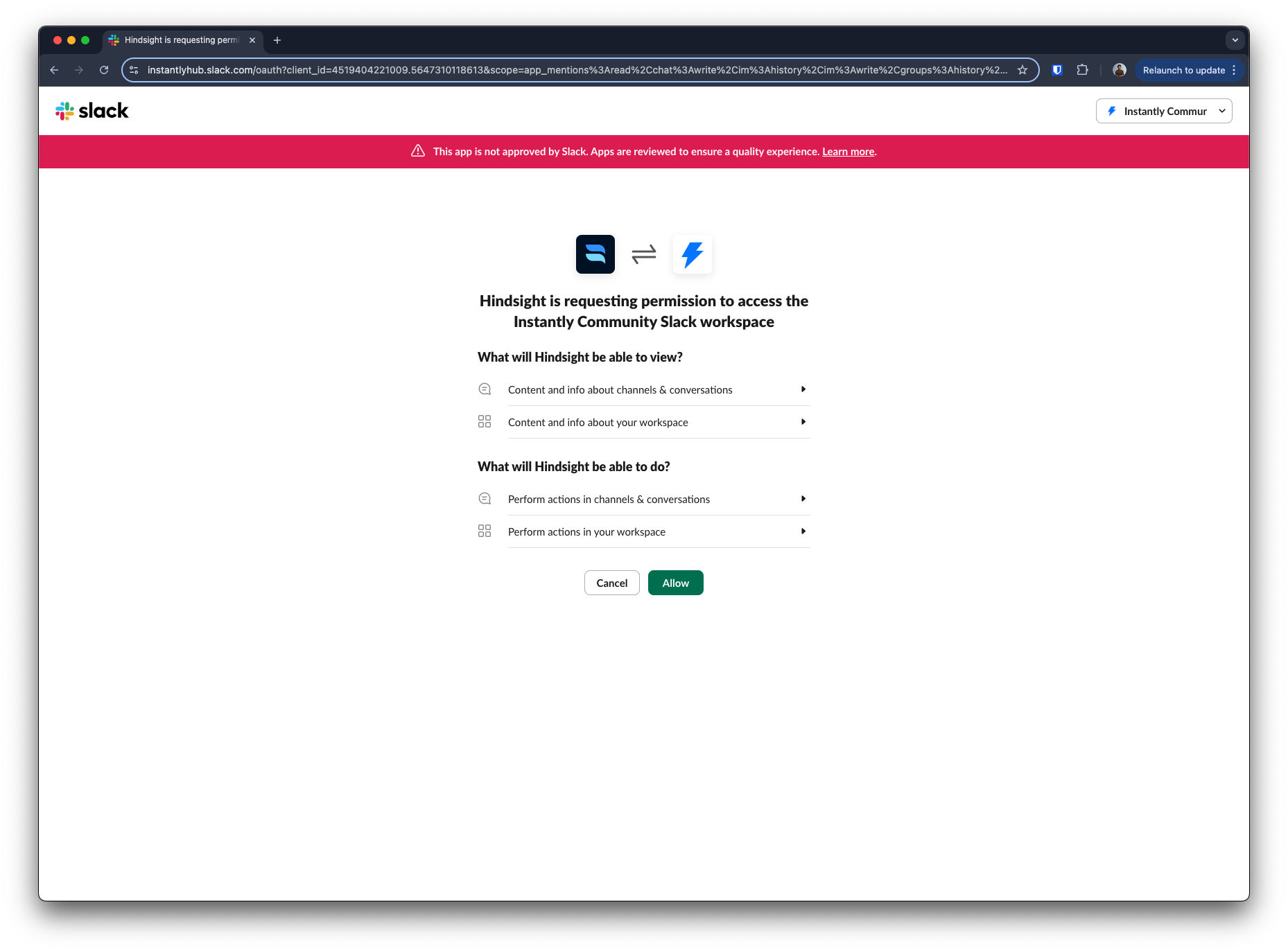
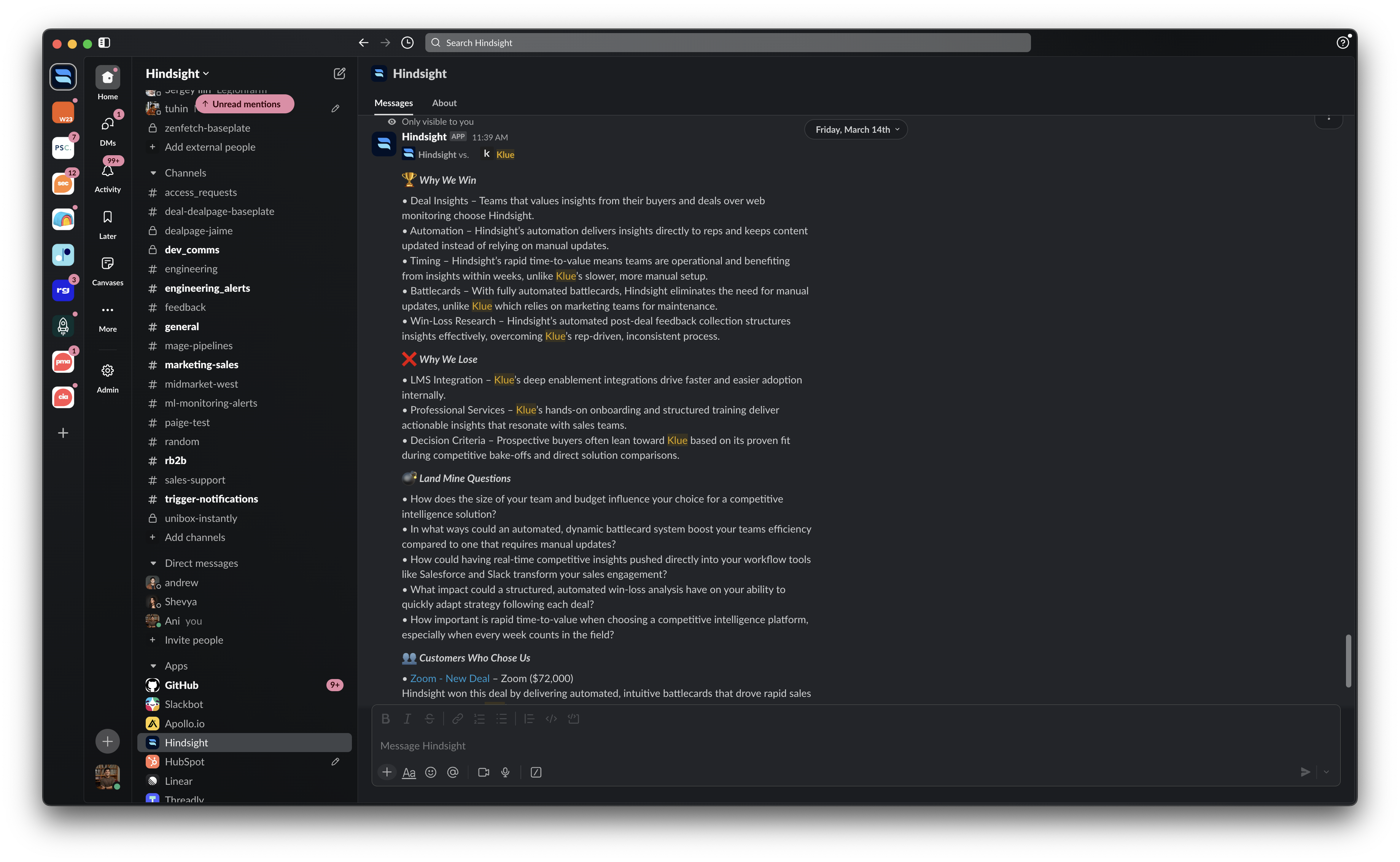
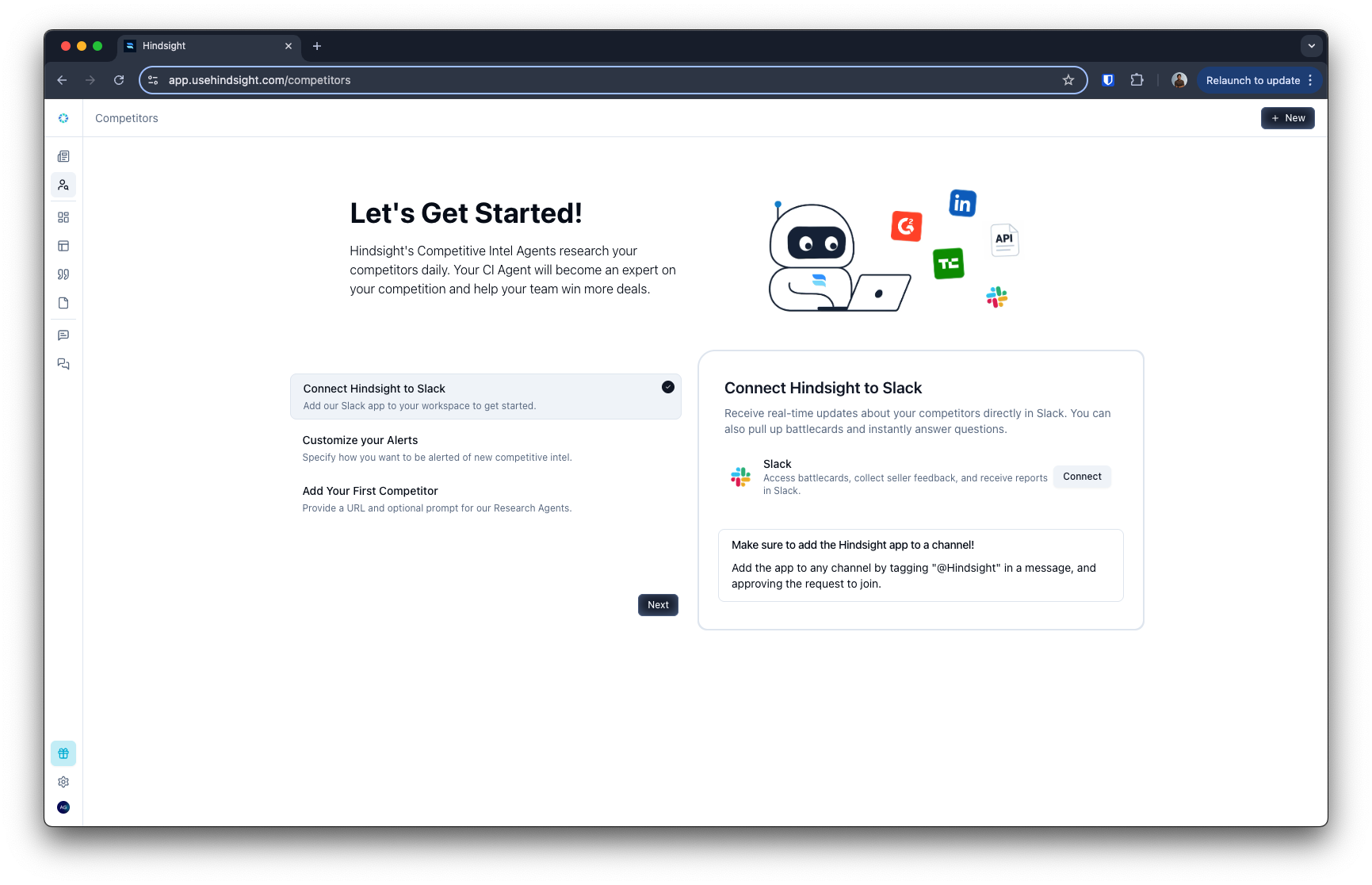 Add the Hindsight Slack App to your workspace to deliver battlecards, notifications, and other insights directly to your sales team. First, add the bot to your Slack Workspace.
Then, add Hindsight to a channel by typing `@Hindsight` in any channel and confirming the invite.
Add the Hindsight Slack App to your workspace to deliver battlecards, notifications, and other insights directly to your sales team. First, add the bot to your Slack Workspace.
Then, add Hindsight to a channel by typing `@Hindsight` in any channel and confirming the invite.
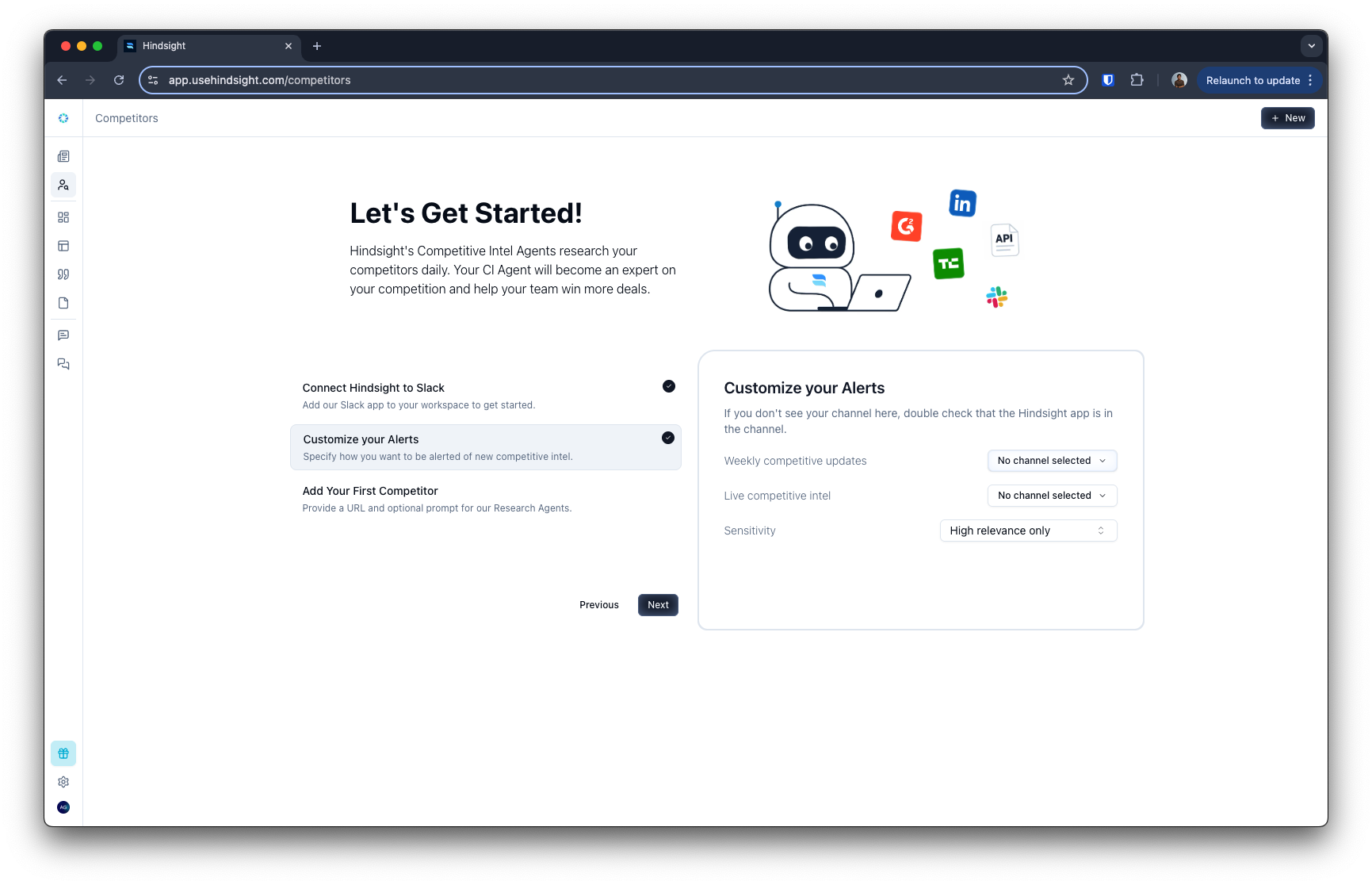
 Configure the types of [alerts](https://app.usehindsight.com/settings/alerts) you want to receive. You can choose to receive a Weekly Newsletter and Real-Time Updates. You can choose what types of updates to receive based on the `Sensitivity` setting.
You can choose "High Relevance" to only receive Real-Time Updates when something really important is detected, or decrease the sensitivity to receive more updates.
Configure the types of [alerts](https://app.usehindsight.com/settings/alerts) you want to receive. You can choose to receive a Weekly Newsletter and Real-Time Updates. You can choose what types of updates to receive based on the `Sensitivity` setting.
You can choose "High Relevance" to only receive Real-Time Updates when something really important is detected, or decrease the sensitivity to receive more updates.
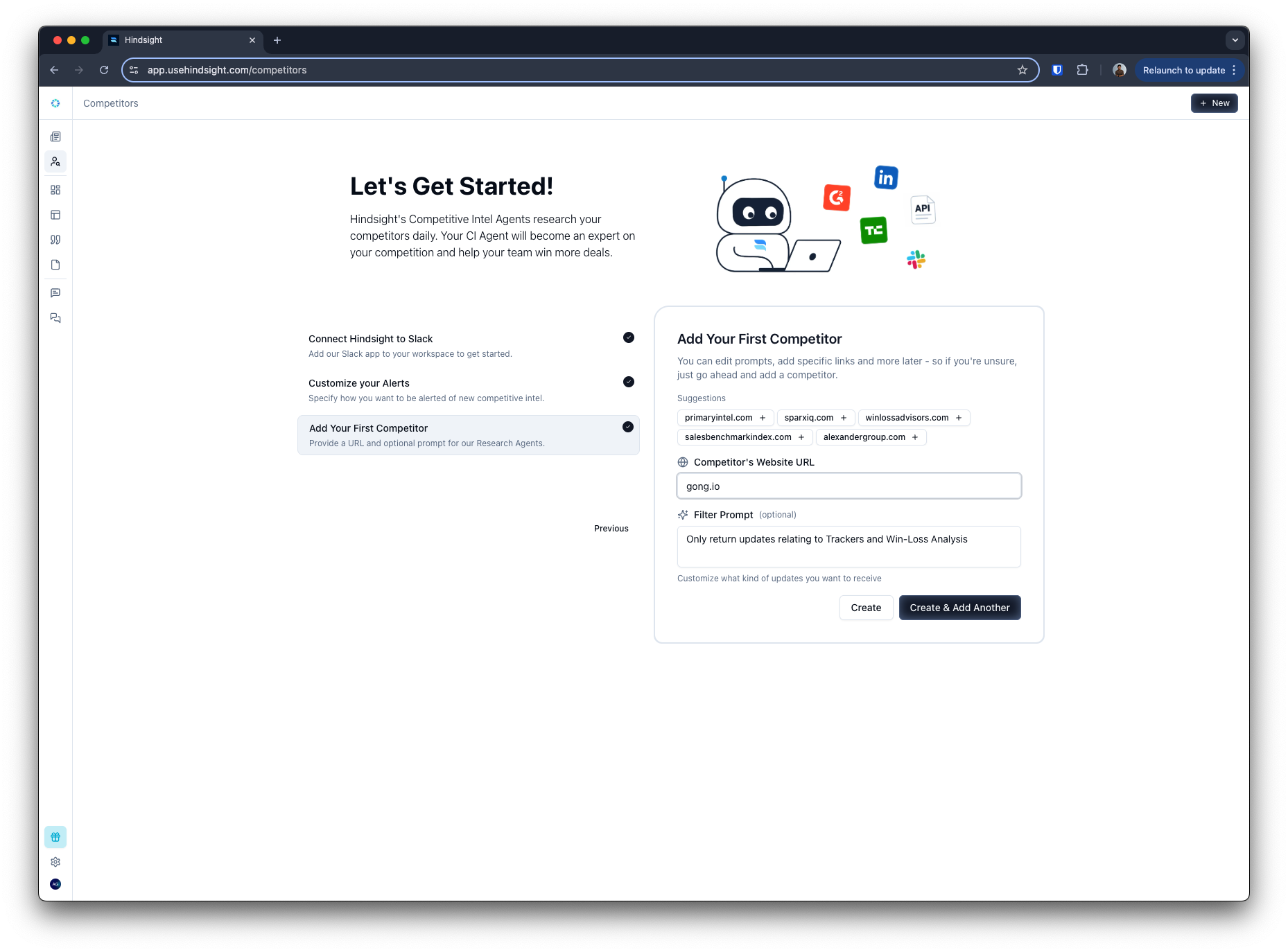
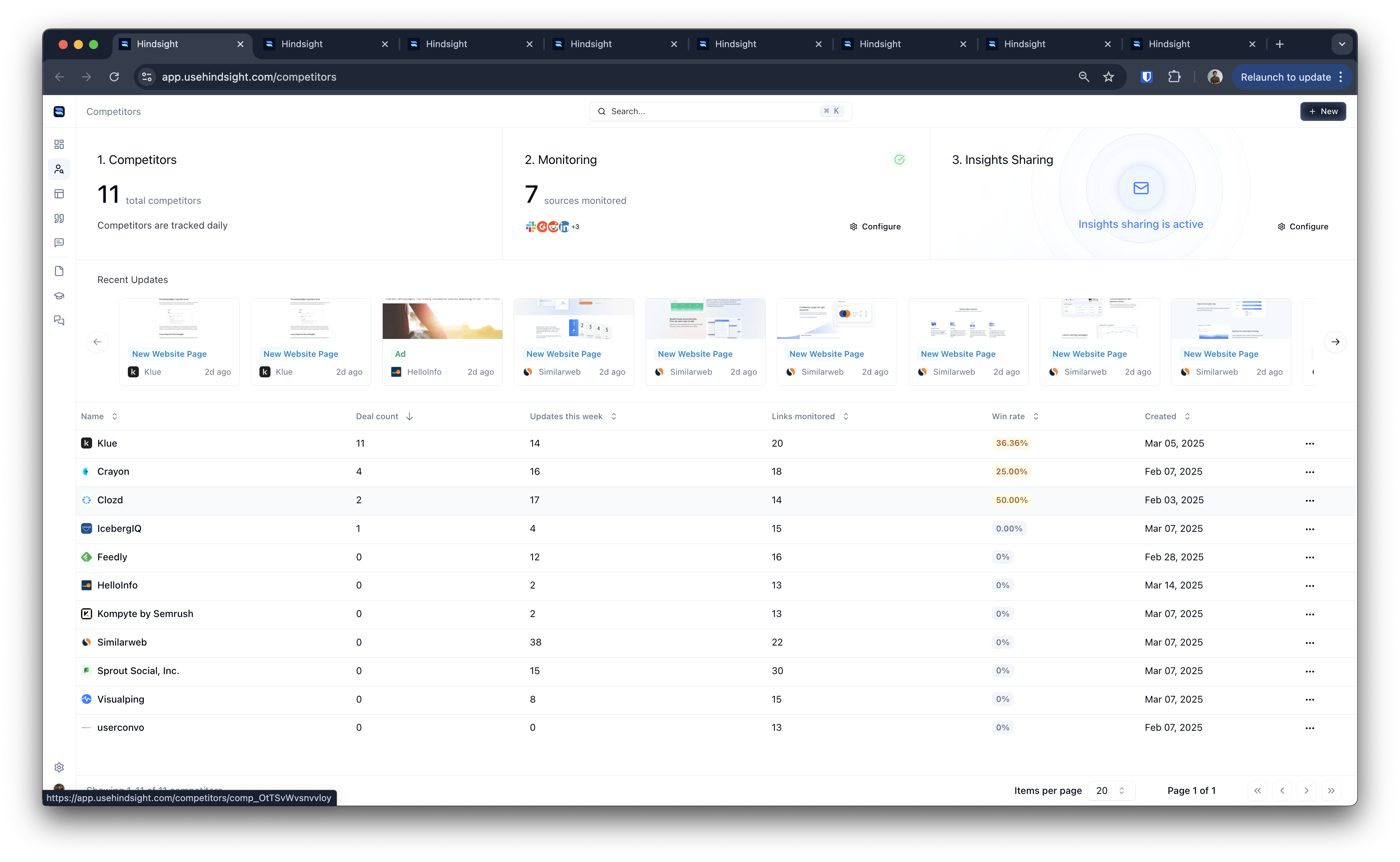
 Add your [competitors](https://app.usehindsight.com/competitors) by domain. You can also add specific instructions for our AI agents to follow when tracking your competitors. For example, you can tell them to only track content about specific products, specific subdomain, or even specific keywords.
 You've successfully added your first competitor. Hindsight will start tracking their moves and sending you updates. You can view the updates on the [News Feed](https://app.usehindsight.com/feed) page.
Add more competitors by hitting the `New` button at the top right of your competitors page.
You've successfully added your first competitor. Hindsight will start tracking their moves and sending you updates. You can view the updates on the [News Feed](https://app.usehindsight.com/feed) page.
Add more competitors by hitting the `New` button at the top right of your competitors page.
 ### What's Next?
Connect your meeting notetaker (like Gong) and CRM to bring in deal intelligence.
Configure what types of insights you'd like to receive from Hindsight..
Generate feature comparisons and competitive resources to help your team win more deals.
{/*
### Get Started
### What's Next?
Connect your meeting notetaker (like Gong) and CRM to bring in deal intelligence.
Configure what types of insights you'd like to receive from Hindsight..
Generate feature comparisons and competitive resources to help your team win more deals.
{/*
### Get Started
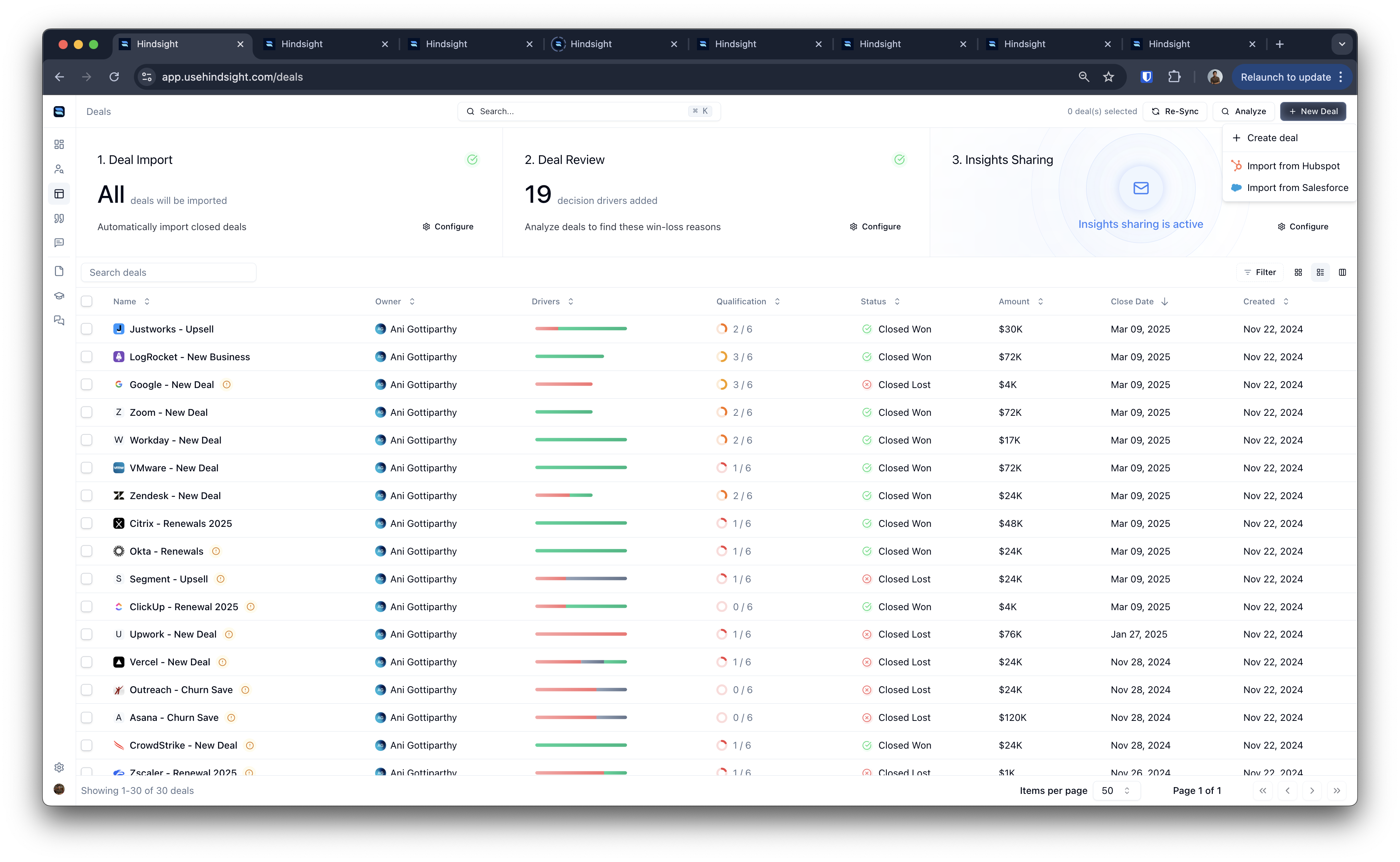
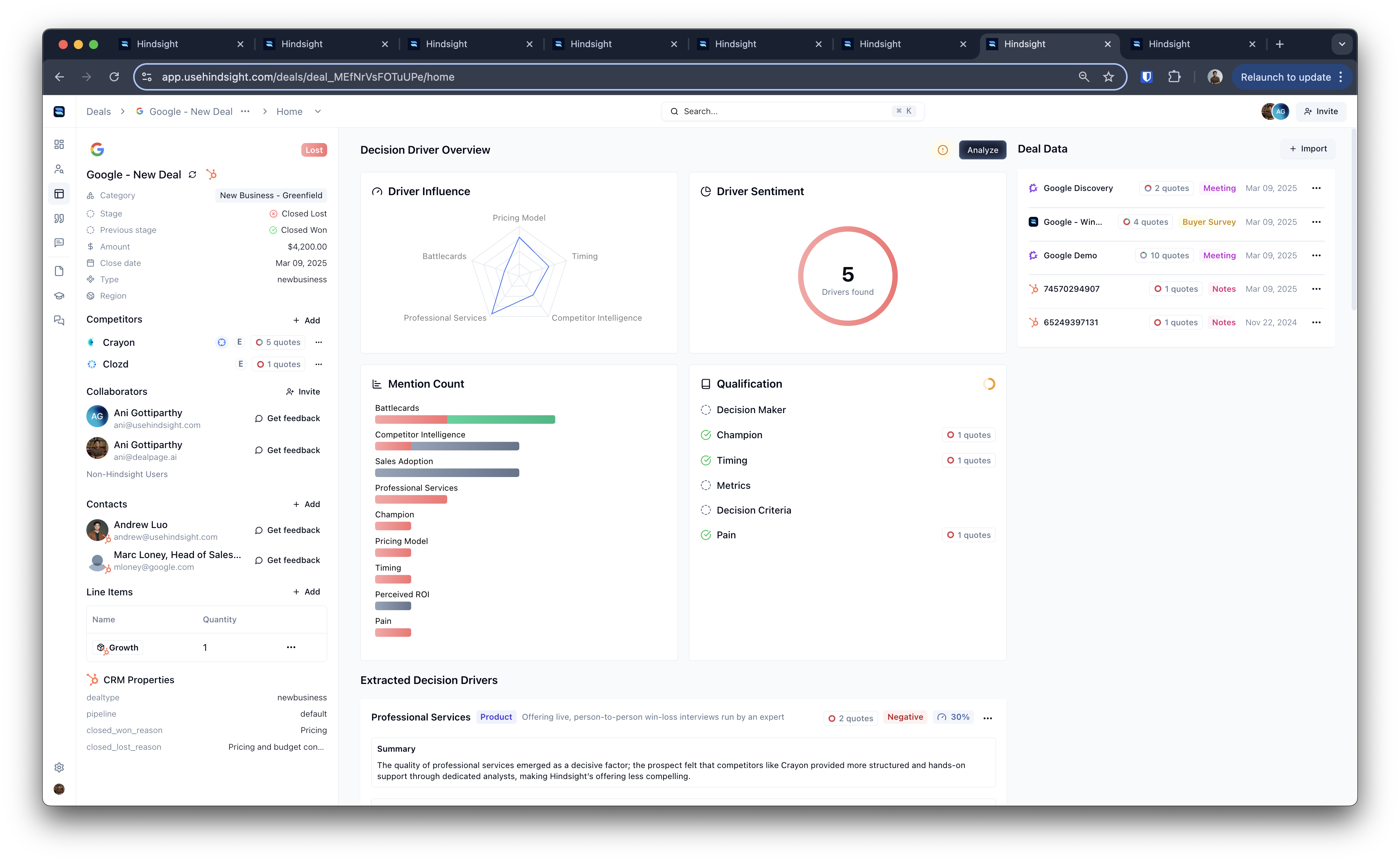 Import your first deal from your CRM. Hindsight will analyze the deal and extract competitive insights based on the decision drivers you added earlier. You can view the analysis on the individual [Deal](https://app.usehindsight.com/deals) page and in the [dashboard](https://app.usehindsight.com/dashboard) .
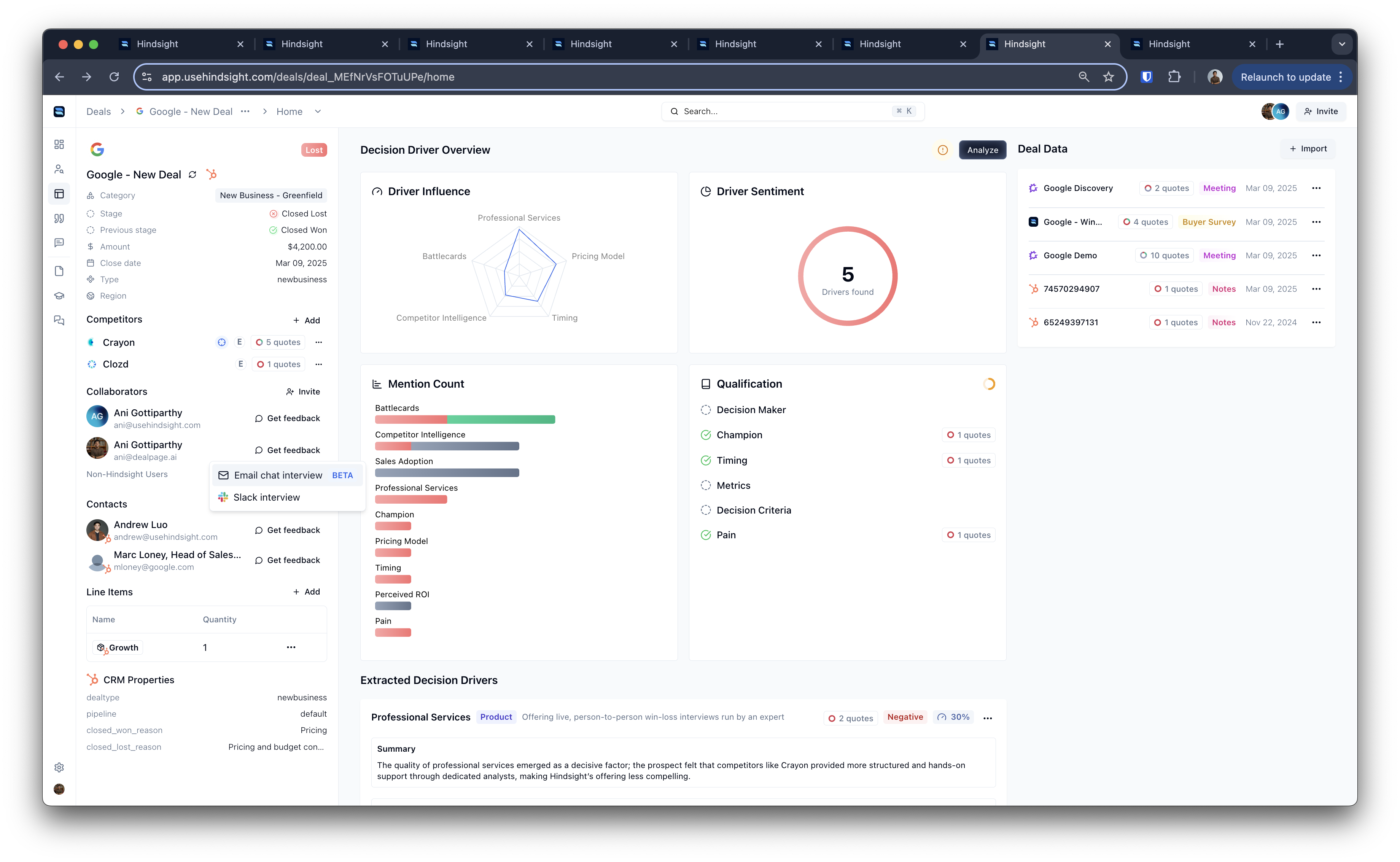
 Send a win-loss interview request to someone from your sales team. Hindsight will handle follow-ups, conduct the interview, and analyze results. You can send the request via email or Slack. Configure in your [Win-Loss Surveys settings](https://app.usehindsight.com/settings/reports).
 Visit the [Competitors](https://app.usehindsight.com/competitors) page and select a competitor. Regenerate the battlecard to utilize insights from your Deals. You can customize the battlecard by adding or removing sections, changing the layout, and more.
 Add the Hindsight app to any of your Slack channels and get a simplified view of your battlecards by typing ```/battlecard [competitor name]```.
 */}
*/}