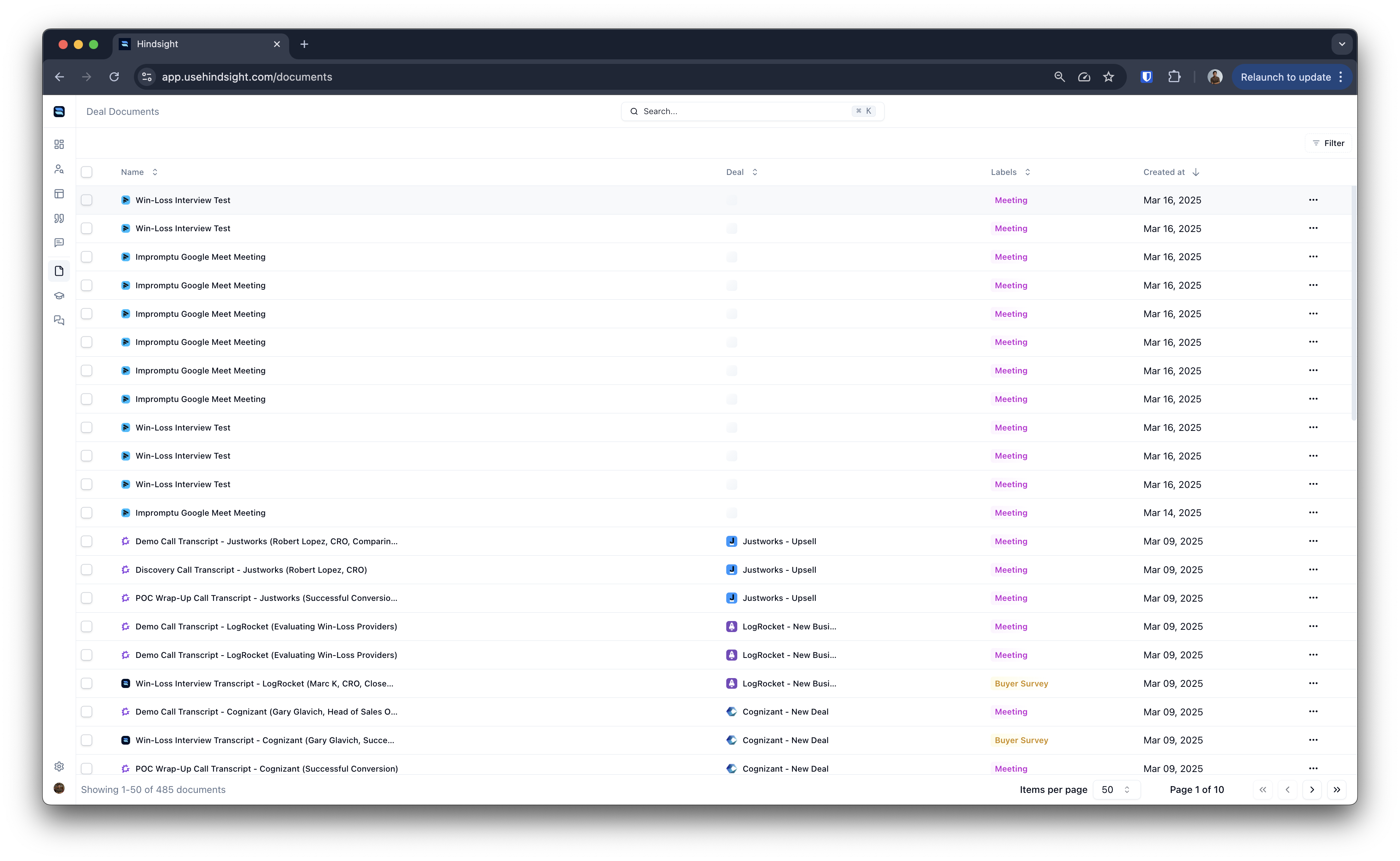

Overview
Hindsight’s Zapier integration allows you to send the outputs of your workflows to thousands of apps without needing us to build a native integration. For example, you can automatically create a slide deck in Gamma.ai from a Hindsight workflow output.The Zapier integration is currently invite-only. Request access in the app to get started. You’ll receive an invite to use the Zapier integration in your email.
Create a Zap
When creating a Zap, select Hindsight as the Trigger app. You should see Hindsight (1.3.0) as the version.Authenticate your Hindsight account
Generate an API key from the API Keys page. Paste your API key when connecting your Hindsight account to the Accounts tab in Zapier to authenticate.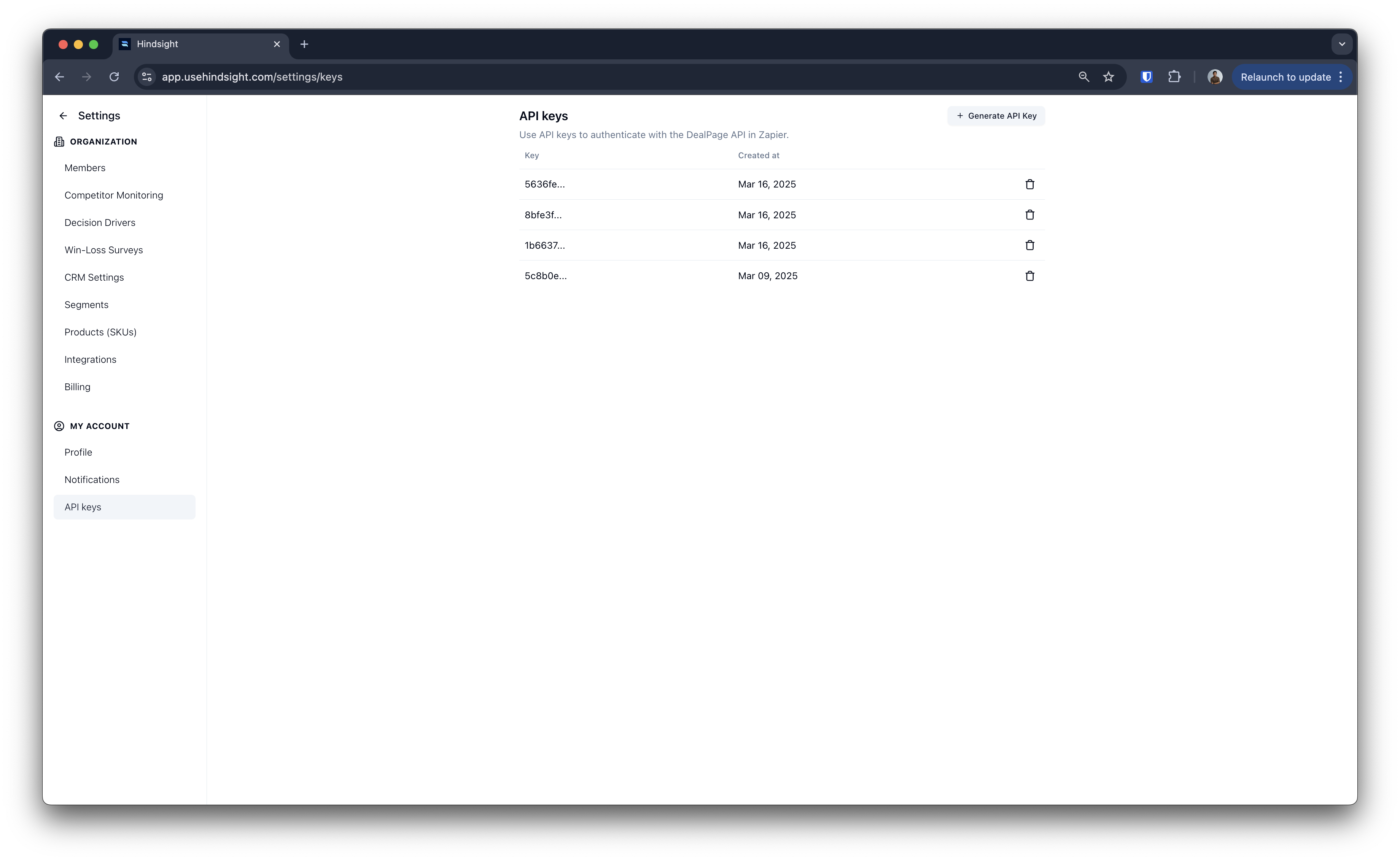
Set up your Trigger
Choose a workflow as your trigger—this will fire whenever that workflow completes. You’ll see a test output to help you map the data to your action app.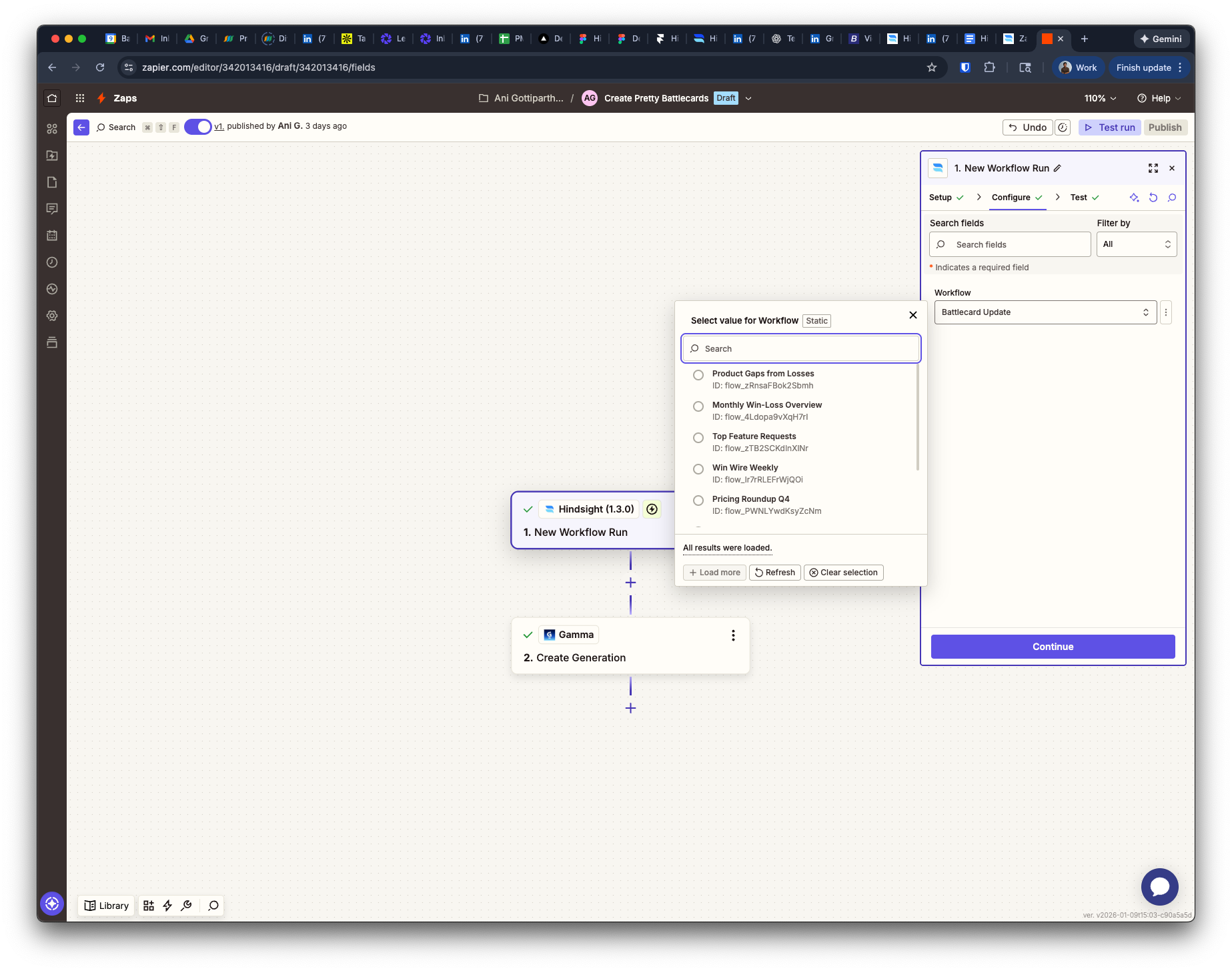
Configure your Action
Select your destination app (e.g., Gamma.ai, Google Slides, Notion) and map the workflow output fields to your action. You’ll typically want to use the Report Content field. This allows you to automatically send Hindsight workflow results to your connected apps.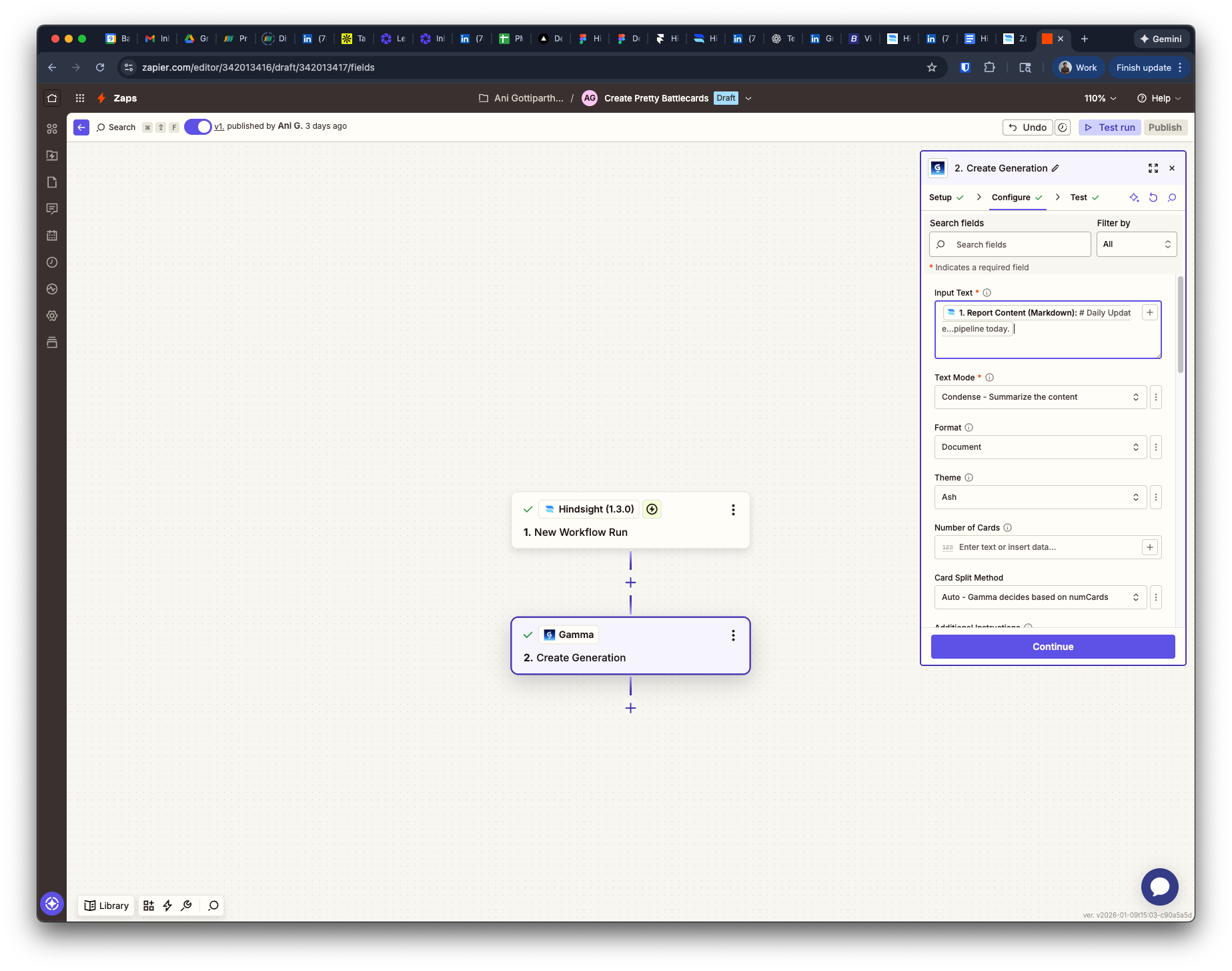
Test and Enable
Test your Zap to make sure everything is working correctly, then turn it on to start automatically sending workflow outputs to your connected apps.Using Hindsight as an Action
You can also use Hindsight as an Action to send data into Hindsight from other apps. This is useful for importing documents from meeting notetakers and other sources.Create a Zap with Hindsight Action
Select your trigger app (e.g., a meeting notetaker like Fathom), then select Hindsight as the Action app. Choose the Create Document action to create a new document in your Hindsight account whenever the Zap is triggered.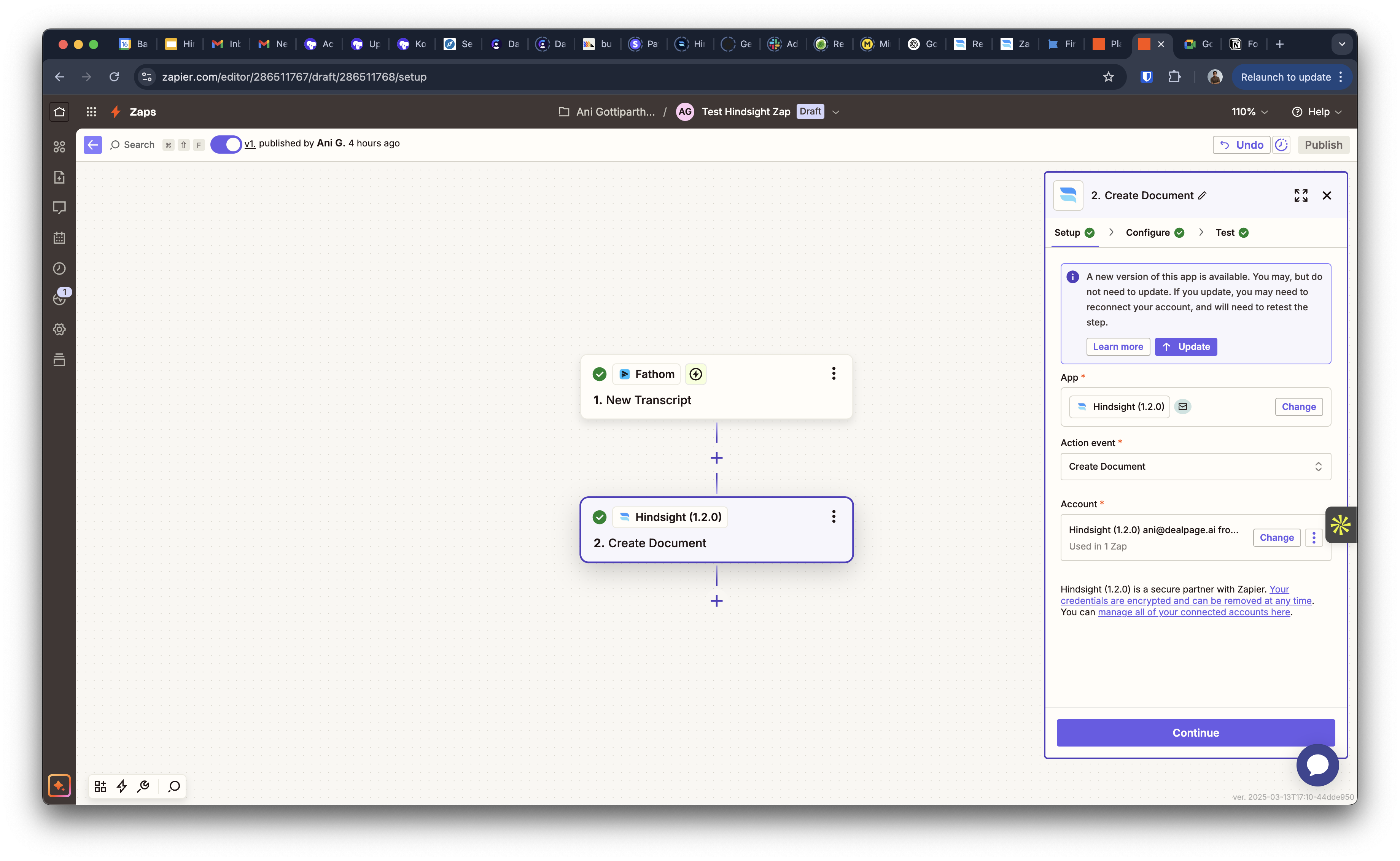
Map your fields
Map the fields from your trigger app to the fields in Hindsight. This will allow you to send data from your trigger app to Hindsight when the Zap is triggered.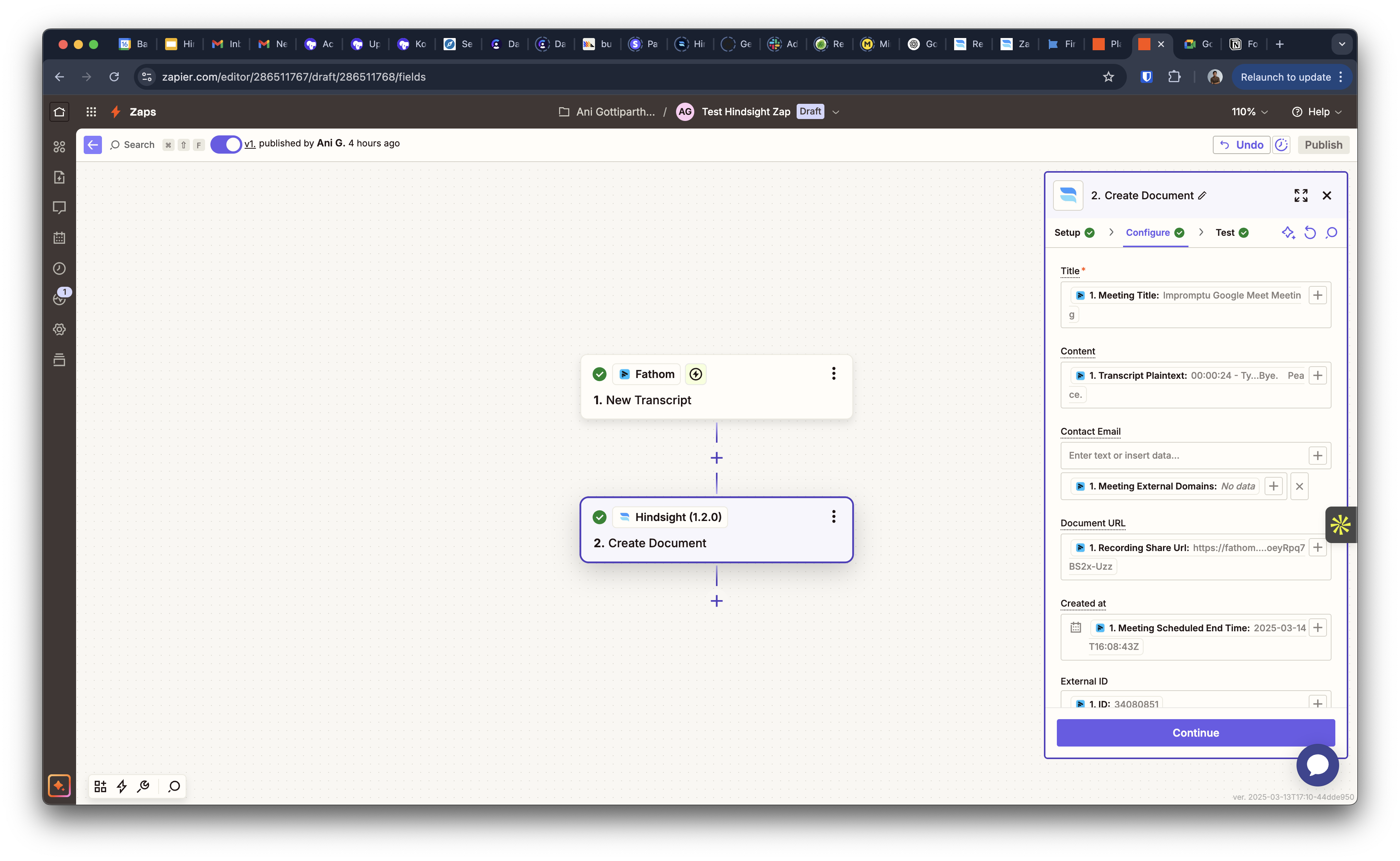
Test and turn on your Zap
Test your Zap to make sure everything is working correctly. This will send a test document to your Hindsight account. Once verified, turn on your Zap to start sending data.